
Settings
You can set e-mails to users in the settings. In the following tabs you can find settings for logs, notifications and special notifications. You can also set slowdown factors, remote screen resolution, and LDAP protocol.
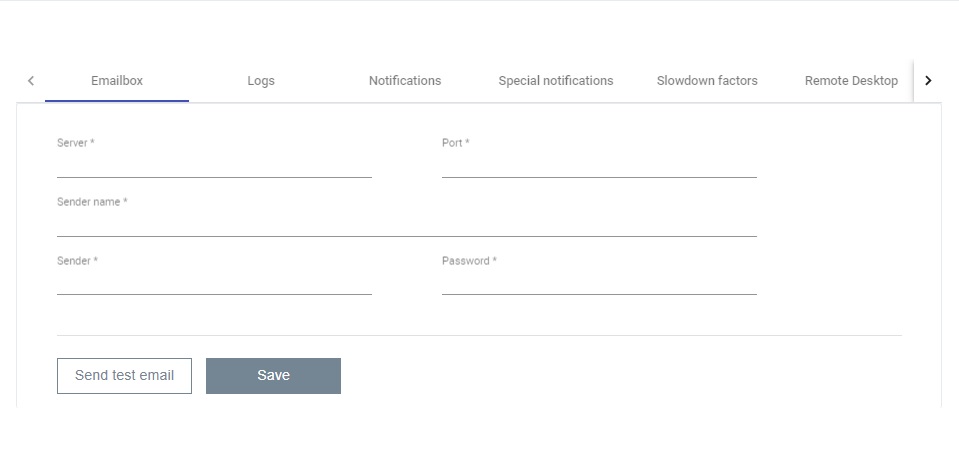
For e-mail settings, you must first enter the server address and port. The sender's name must be given in the next line. Finally, you need to enter your e-mail address and password.
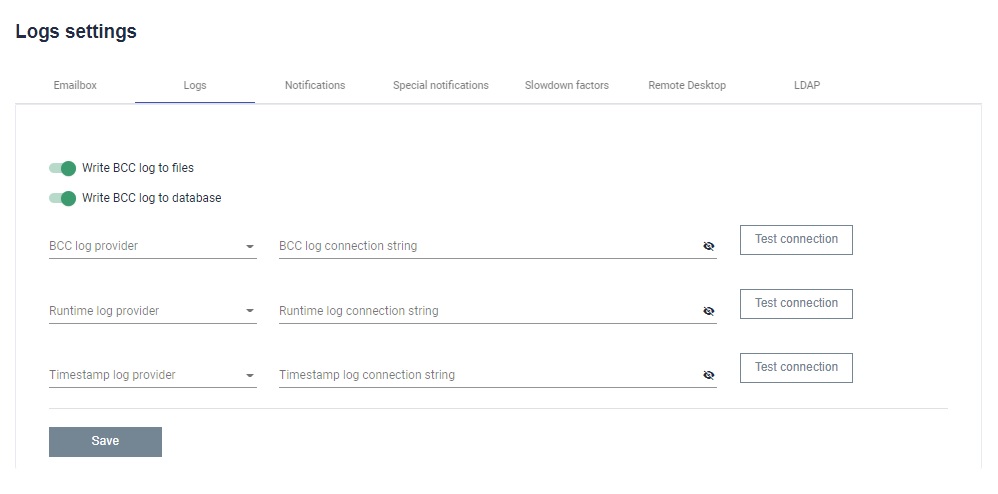
In the log settings, first you need to choose whether the logs are to be saved to a file and whether they are to be saved to the database.
If the logs are to be saved in the next step, you must provide the BCC log provider, the Runtime log provider and the Timestamp log provider. You must also provide a log connection string for each provider.
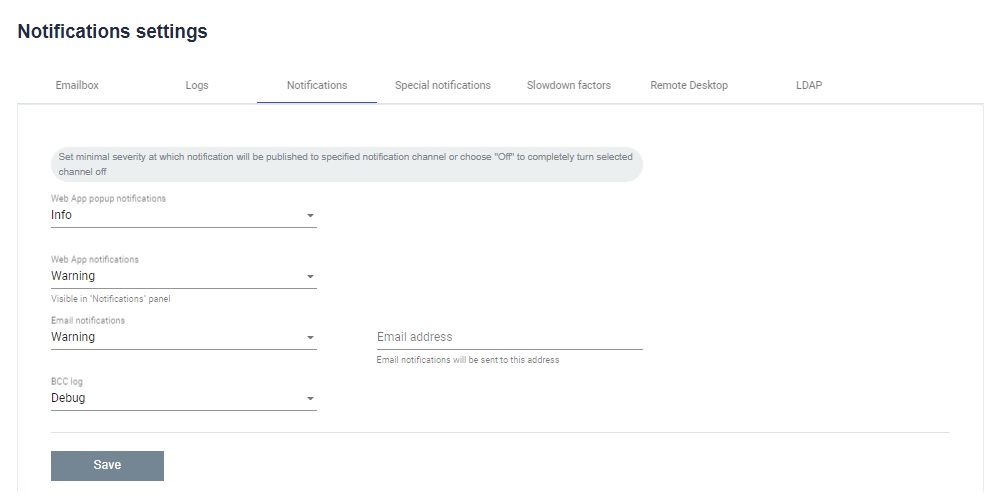
You should set the minimum severity with which notifications will be published for each type of application, e-mail or BCC logs. You can also enter an e-mail address to which the e-mail notification should be sent.
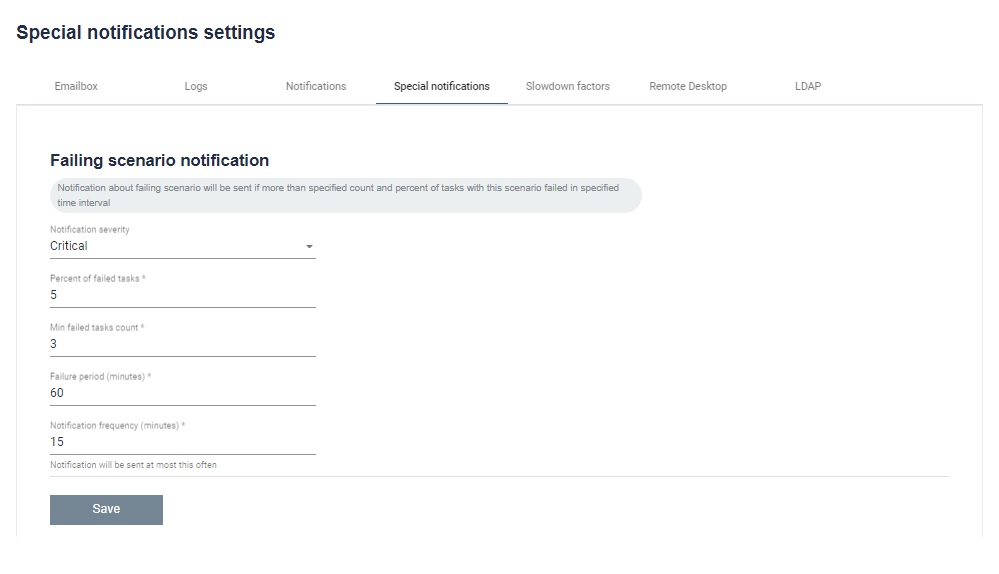
A scenario failure notification will be sent if more than the specified number and percentage of tasks in that scenario have failed within the specified time period.
First, you need to set the severity of your notifications. Then set the percentage of failed tasks and then the number of failed tasks. In the next step, enter the failure period in minutes. Finally, you need to set the frequency of the notifications to be sent.
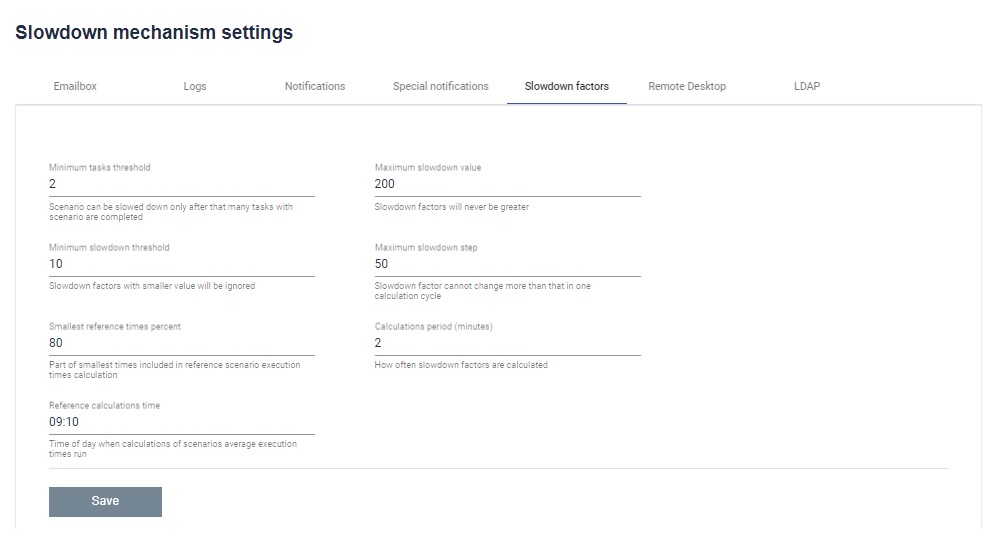
This tab contains the setting of the slowdown factor. First you need to set after how many tasks with the scenario the scenario can slow down. Then set the maximum slowdown value. The slowdown factors will never be greater than the given value. In the next line, set the minimum slowdown threshold. Slowing down factors of lesser value will be ignored. Then set the maximum slowdown step. Slowdown factor cannot change more than that in one calculation cycle. In the next line, set the lowest percentage of reference times. Part of the shortest times included in the calculation of the reference scenario execution times. Then set the calculation period. How often the deceleration factors will be calculated. Finally, set the time for the reference calculation. Time of day when the mean scenario execution times are calculated.
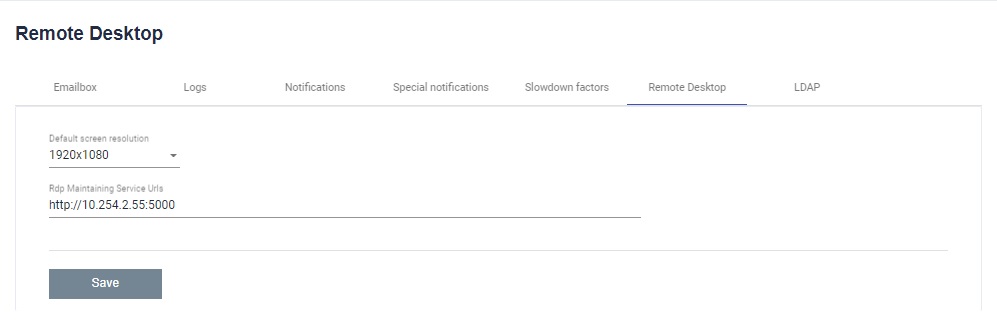
On this tab you can specify settings for the remote desktop. Set the default screen resolution. Then provide the Rdp Maintaining Service Urls.
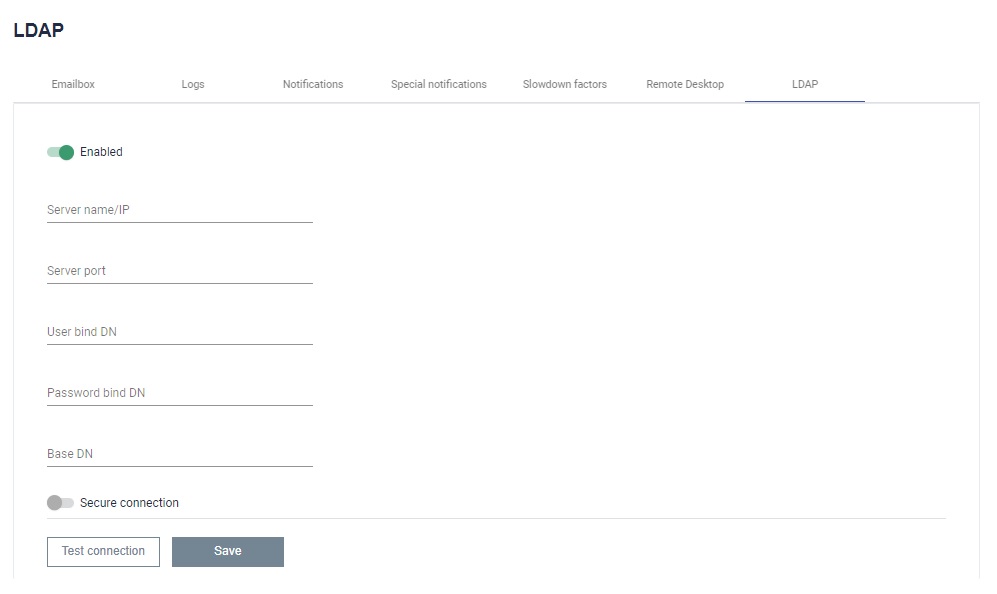
In this tab, we can configure BCC to download users from a specific Windows domain. To do this, switch "Enabled" to on.
First you need to enter the server name or its IP address. Then the port number. On the next line, enter the user distinguished name, followed by the password. Finally, you must provide the database distinguished name. Below the input fields there is a button that, when enabled, will allow you to use a secure connection.