
Robots
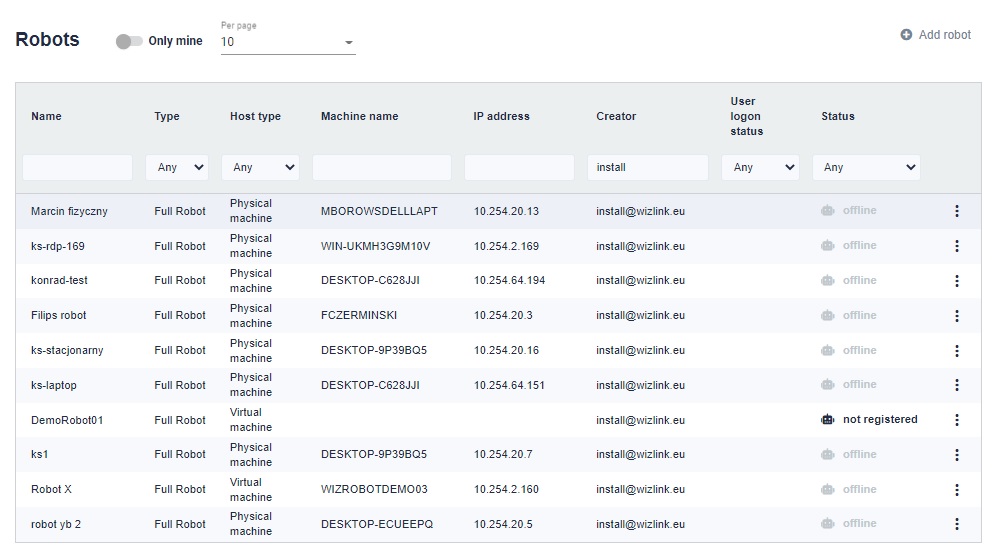
You need robots to perform scenario-based tasks. In the "Robots" tab in the upper right corner there is the "Add a robot" button.
First, you need to choose whether you want to add a physical machine, virtual machine or Windows server.
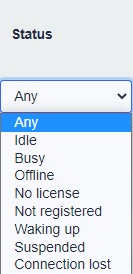
The robot can have the status:
Idle - Waiting for a task to be assigned
Busy - This robot is busy with an assigned task
Offline - inactive
No license - Without a license
Not registered - Unregistered
Waking up - The robot is waking up
Suspended - The robot is suspended
Connection lost - Robot lost connection
Tytuł
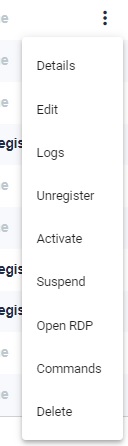
Details - You can view the details of the robot.
Edit - You can edit the entered data.
Logs - You can view logs for a specific robot.
Unregister - You can unregister the robot.
Activate - You can activate the robot.
Suspend - You can suspend the robot.
Open RDP - You can open the remote desktop of this robot.
Commands -
Delete - You can delete this robot.
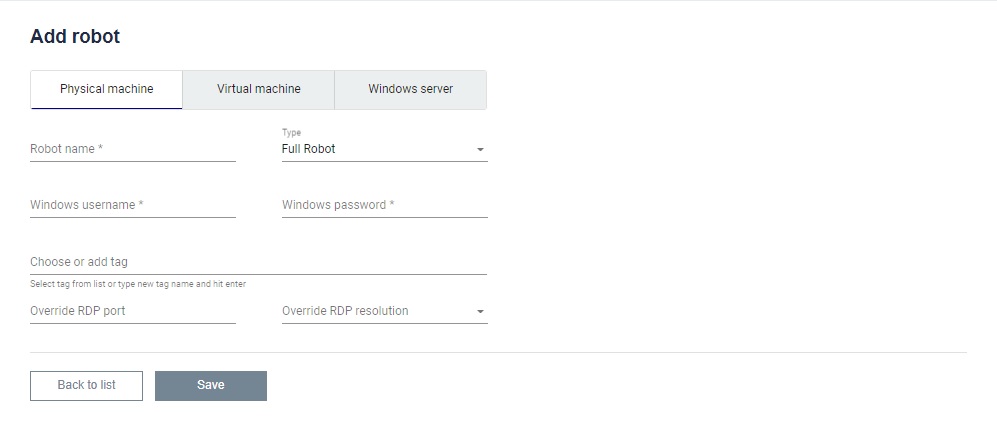
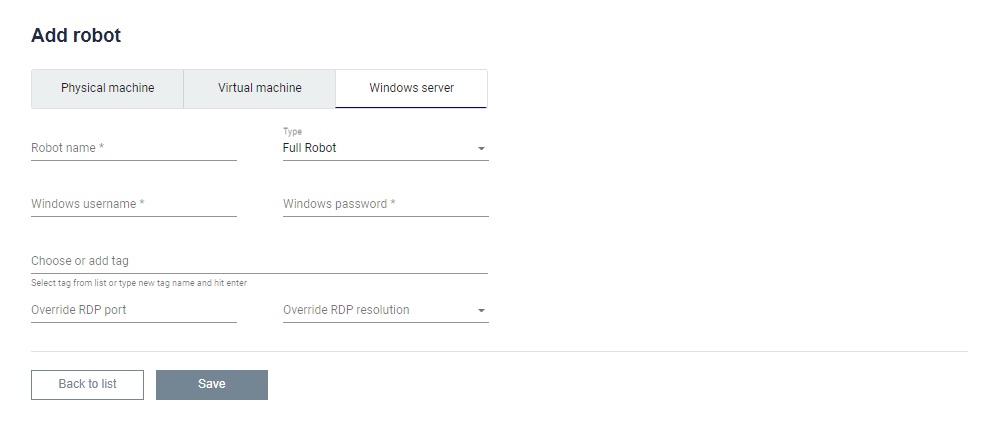
In the second step in the case of a physical machine, virtual machine and Windows server, give the robot a name and select a type from the drop-down list. In the next line, enter your Windows username and password. Then tags can be added. If you have a non-standard system configuration and you need to connect to Rdp on a port other than the default one, you can enter it in the last line. Next to it, you can also override the RDP resolution.
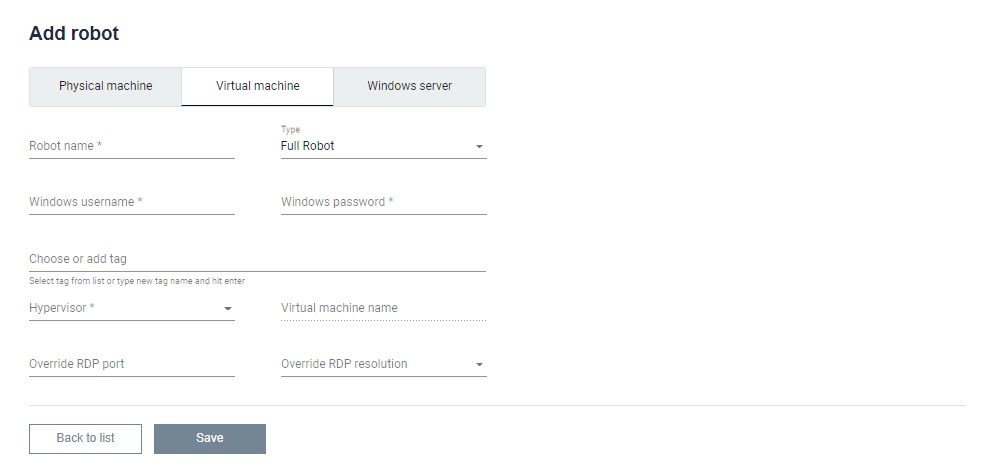
In the case of a Virtual machine, you must also select a hypervisor and the Virtual machine name from the drop-down list.