
Schedules
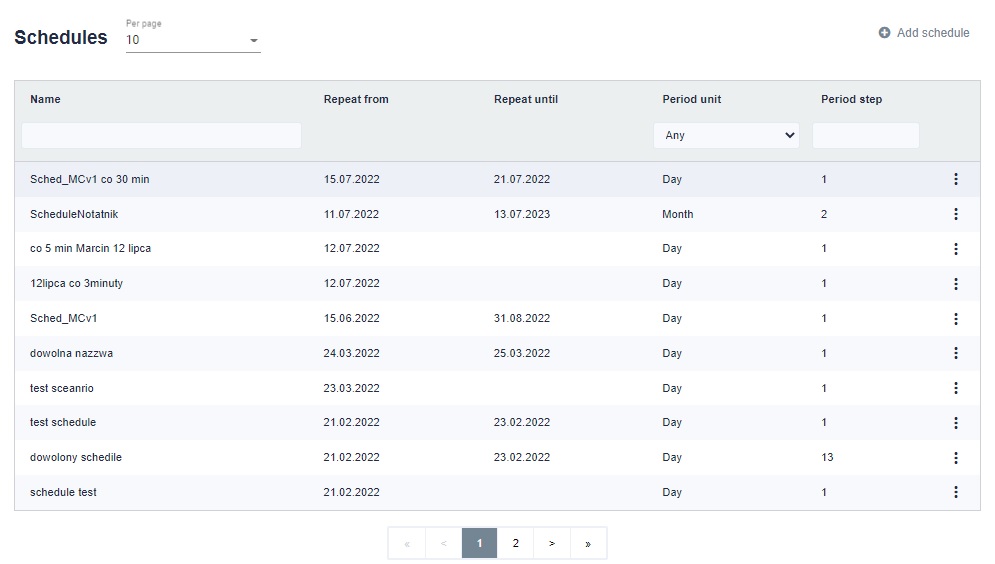
The task execution schedule can be set in the Schedules tab. In the upper right corner there is the "Add schedule" button. Two groups of properties must be specified when adding a schedule. The schedule ID is its name. These are general data about the cycle in which the given cyclic package is to run and at what times the given package is to execute.
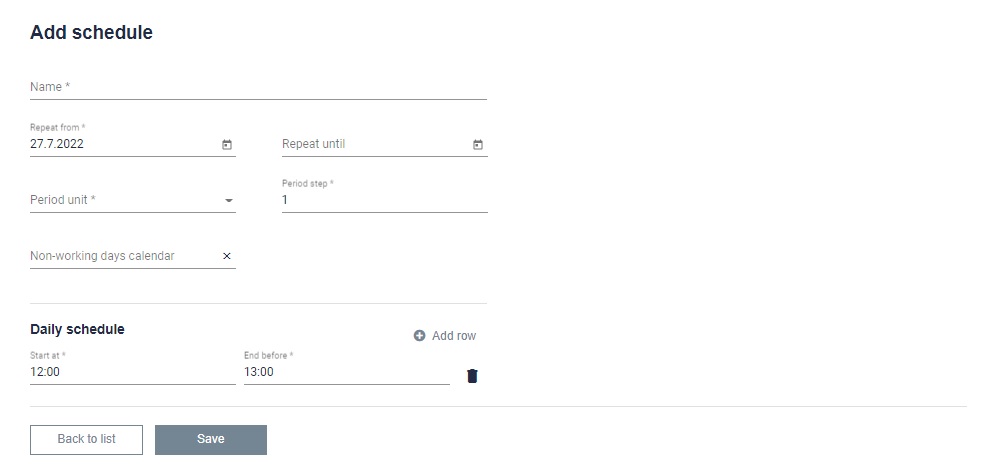
Provide from when to when the schedule is to be valid. You must also select the period (day, week, month). Then we choose how many steps the schedule is to be performed. You can add a previously created calendar with working and non-working days. Each selected execution time frame means one execution. If you want the scenario to run twice, for example, click the "add row" button and select the time range. Below you can see a summary of everything we have chosen.
After adding the schedule, we can create a package that will be executed on its basis.
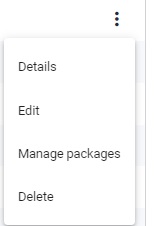
By clicking on the three dots to the right of a given line, a list of options to choose from will be displayed. By clicking on Detail you can see the details of a given schedule. By clicking Edit you can edit the schedule. By clicking Manage packages, you can view packages related to a given schedule. You can delete the selected schedule by clicking Delete.